Coding in R
Welcome to the R portion of my coding tutorials. Below are instructions to download the appropriate material so you can get setup and ready to use R! A few quick demonstrations of what you can do are also listed below.
How to Download and Install R and RStudio
In order to start using all the capibilities of the data science tool R, we need to make sure we download and install the proper software first. We are going to need to download two things: R and RStudio.

- R is the coding software, it has full functionality to be used, but it is lacking some features. We will refer to R by itself as base R. Think of base R as the Notepad software that comes with your operating system. It is fully capable of being used to write text, however, it is missing a lot of extra features such as changing font types and sizes, adding photos, adding headers and footers, and more. In order to get
this additional functionality, we will need to download and install RStudio.
- RStudio allows you to write R code with much more functionality. With RStudio, you can view plots, open multiple files, change color scheme, open files, and more! Going back to the Notepad anaolgy, think of base R as the Notepad and RStudio as Microsoft Word. This distinction should easily describe why we need both software in order to use R in
the most optimal way.
Links
Watch this video and read this article to familiarize yourself a little better with the software. I encourage you to search online for additional information if you want to learn more! (The internet is your friend when you have questions with coding software!)
Congrats! You have just taken your first step to be a data scientist! You are doing great!
This is what RStudio should look like the first time you open the program.

After installing and booting everything up for the first time, things may seem a little overwhelming, do I recommend watching this video that explains the four main panels in RStudio and some basic things to do.
RStudio Dark Mode
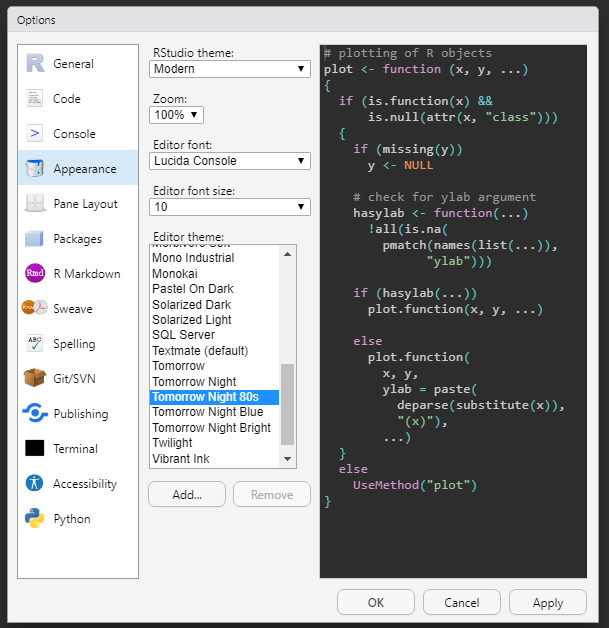
I also would like to add that it is popular practice in data science to change the color scheme to a darker version to keep things easier on the eyes. You can change the color schemes by going to Tools -> Global Options -> Appearance. I would recommend changing the “Editor Theme” to something with a dark background so you’re not staring at a bright, white screen as you work. I recommend using the theme “Tomorrow Night 80s”, but chose what you prefer! Now you are ready to get started with some material! Follow the links below to some quick tutorials that showcase automating some common excel tasks.
Demonstrations
Below are a list of examples of things you can do in R to help automate some work processes while using excel. I will be using data from Government and Non-Government Databases!
- Demo 1: how to clean up and merge common labor indicators from the Bureau of Labor Statistics.